About Me

SharePoint Architect with over 17 years of IT Experience in various roles as SharePoint Architect, Administrator, Technical Architect, IT Analyst, Application Developer, CRM Consultant, BI Developer, Microsoft Solution Architect in Client/Server, Web and Enterprise CRM Applications in E-Commerce, Financial, Healthcare, Insurance, Telecom, Outsourcing and Technology Services.
MCITP (Pro): Microsoft Certified IT Professional: SharePoint 2010 Administrator.
MCTS: Microsoft Certified Technology Specialist, SharePoint 2010 Configuration.

Tuesday, November 4, 2014

Issues in cloning a SharePoint 2013 Content Database and Mounting to the same SharePoint Farm.


Following are some scenarios where you may have to clone the Content Databases because of the Site Collections being so large that you can not use Site Collection backups as they are unsupported for Site Collection sizes over 100GB. 

So, I did a few lab exercises assuming different situations, by cloning Root and Additional Content Databases and mounting them using -AssignNewDatabaseId option to determine best possible options available without breaking the site functionality and not affecting 'site mapping' configurations.


I am referring the Content Database with 'top-level' site collection as a 'root Content Database', the rest of content databases existing in Web Application as 'Additional Content Database'

Following are situations in this blog post discussion:  
  • You may have large Site Collection (>200GB) existing in Root Content Database that you want to move to its own content database.
  • You may have a large Site Collections in a non-root content database co-existing one or more Site Collections that you want this site to be moved to its own Content Database.


  • You may have a large site collection over 200 GB existing in a Web Application (A) that you want to move it to another Web Application (B)


  • You may have a Web Application (A) with a root Content Database having a large Site Collection that you can not take backup of it by any method, and you have a requirement to decommission this Web Application (A) and migrate existing Site Collections to another new or existing Web Application (B).
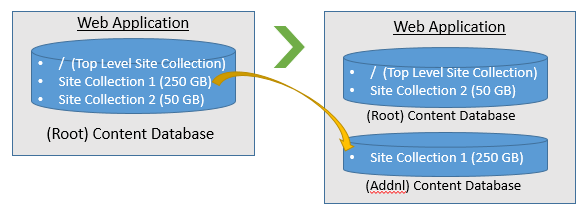
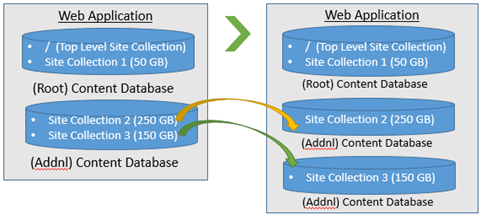

  • You may have a requirement to move numerous Site Collections that it is difficult to take backup of them by any available methods, to a separate Content Database. So, as a workaround, it may be easy to duplicate Content Database and delete unwanted site collections in either Content Database. Or it may be that, you may have to migrate numerous site collections from one Content Database to other Content Database, that you may think it is easier to clone Content database and mount it with AssignNewDatabaseId rather than working with stsadm/PowerShell Site Backup and restore operations.

Content Databases:
As we knew that every SharePoint Content Database has a Unique Id and the Content Database ID will be saved in "Database Information Table" in Content Database. Also, when a New Site Collection is created in any of the Web Application, or an existing Content Database is mounted to the SharePoint Farm, the 'Objects' table in Configuration Database gets updated with the 'Database ID' and 'Site Map' table gets updated with the 'Site Collection' details with URL mappings, Web Application and Content Database details.
As a default SharePoint Architecture,
  • A cloned copy of an existing Content Database can not be attached to the Same Farm. SharePoint returns error saying that another Database is already existing with same Database Id. But, Mount-SPContentDatabase allows you attach a cloned database with –AssignNewDatabaseId option. But unfortunately, any site collections existing in the Content Database have the same 'Site Id', then they become orphaned and will not showup in the Central Admin's Site Collections list. Also, upon mounting the 'Site Map' table will not get updated with the Site Collections information having conflict with existing Site Ids.

  • An existing Site Collection cannot backedup and restore with different name to the Same Web Application. SharePoint returns error saying another Site Collection exists with Same 'Site Id'. But, you may allowed to restore the backup in a different Web Application with same or different name.

Following is a workarounds to overcome issues with 'Site Id' Conflicts if you are trying to duplicate a content database and you want to keep one unique Site Collection in each Content Database and avoid conflicts with 'Site Ids', using –AssignNewDatabaseId.
  • First make a duplicate of the Content Database.
  • After verifying the backup copy, delete the site collections existing in the Original Content Database.
  • Detach the Original Database.
  • Mount Cloned copy of Original Content Database using Mount-SPContentDatabase with –AssignNewDatabaseId option. This will allow the New Database be be attached to the farm without a conflict of Database Id.
  • Delete the Site Collections those you want to keep in Original Content Database and don't want them in the Second Cloned Copy of Content Database.

    (Optional Scenario-1)
  • If this Cloned Content Database is likely to be attached as additional Content Database to the same Web Application, then delete the Top-Level Site Collection.

    (Optional Scenario-2)
  • If this Content Database was a root Content Database and if you are trying to attach to another Web Application, then Delete Top-Level Site Collection and Re-create as New.

  • After making sure you have unique Site Collections in both Content Databases, Attach Original Content Database.
To Conclude, AssignNewDatabaseId will only sets a New Database ID to the Content Database, but it will not set new 'Site Id's for existing site collections. So, you will have to work with several additional steps to not to make site Collections orphaned. Please also make a note that the workarounds may or may not not work in all scenarios and they may not be fully supported by Microsoft.
Note: Please do not duplicate/Clone (Backup Database and restore with different name) and attach to the farm using -AssignNewDatabaseId parameter without having a thorough understanding of the SharePoint Architecture at Site Mapping functionality and Configuration Database level. Workarounds explained above are for specific scenarios are validated against out-of-the box Site Collections having no customization. So, the workarounds may not be applied in your case and may leave your sites as orphans and also may cause an unrecoverable damage. Please consult an experienced professional for best guidance in your case.

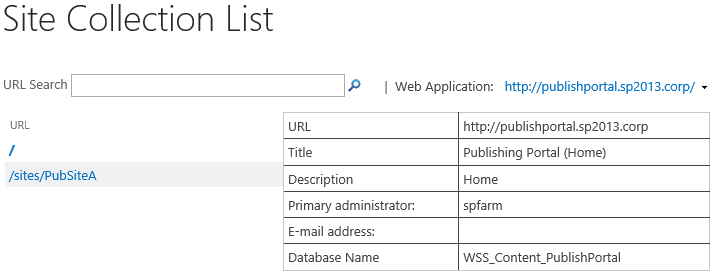
Questions on restoring a SharePoint 2013 Top-Level Site Collection with a backup of another Site Collection.

Following are a few General questions with regard to Top-level Site Collection,
  1. Can a Top-Level Site Collection be recreated having Site Collections in Managed path?
  2. Can a Top-Level Site Collection be restored with a backup of the Site Collection in managed path?
  3. Can a Top-Level Site Collection backup be restored as a New Site Collection in Managed Path?
So, in order to get clarification on above questions I did a lab exercise in SharePoint 2013 and following are my findings.

  1. Can a Top-Level Site Collection be recreated?
In situations if we have deleted a Top-Level Site Collection accidentally or it could be that, the Top-Level Site Collection was initially recreated with incorrect Site Template then we wanted to recreate with a correct site template.
So, I did an exercise in lab in SharePoint 2013 with a Top-Level Site Collection with another site collections existing in the Managed Path. Interestingly, the Top-Level Site was able to be recreated and both Top-Level Site and Site Collection in managed path were accessible and functional.
  1. Can a Top-Level Site Collection be restored with a backup from Site Collection existing in managed path?
Unfortunately, No. The backup of a Site Collection in managed path was not able restore the To-Level Site Collection. (If if it was deleted and the location is empty)
But, PowerShell Export and Import was able to restore a Top-Level Site Collection.
Export-SPWeb -Identity http://publishportal.sp2013.corp/sites/PubSiteA -Path 
C:\ PubSiteAExport\PubSite.cmp -IncludeUserSecurity -IncludeVersions All -NoFileCompression -Verbose

Import-SPWeb http://publishportal.sp2013.corp –Path C:\PubSiteAExport\PubSite.cmp
–UpdateVersions -IncludeVersions -NoFileCompression Overwrite

Note: Please remember to use Export-SPWeb with IncludeVersions if you have exported Site with IncludeVersions. Use of –IncludeVersions parameter exports .dat files to a Folder name as defined in the path. The export will not actually create a file called export.cmp file but instead it creates a folder as ‘/export.cmp/’ and saves backup files there. The Export-SPWeb export backup to the file export.cmp only when the parameter –IncludeVersions is not used.

  1. Can a Top-Level Site Collection backup be restored as a New Site Collection in Managed Path?
Unfortunately, No, You can not restore to the same Content Database where you have existing Top-Level Site Collection.

Alternatively, you can restore the backup of a Top-Level Site Collection to another (Non-Root) Content Database. If you don’t have then add a new Content Database to the Web Application.*These exercises are conducted on sites having no customizations.

Managing and Configuring Distributed Cache in SharePoint 2013.


There are many articles available in several blog sites that talks about Distribution Cache in detail. In this blog I will only discuss about how you can review and extend to scale-up your existing Distributed Cache configurations through Central Admin and PowerShell Command in your SharePoint 2013 environment.  Refer to http://technet.microsoft.com/en-us/library/jj219700.aspx#cache to have a better understanding on Distributed cache in SharePoint 2013.
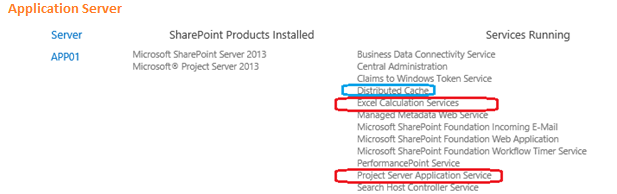
From central admin you can verify what servers are running Distributed Cache.
*Note that it is not recommended to have Distributed Cache running on server along with Excel Services, Project Server and Search Service.
Following is the PowerShell command to verify Cache Hosts enabled in the Cache Cluster.
*Service Status information (UP or DOWN) indicates if the Cache Host is active or not.
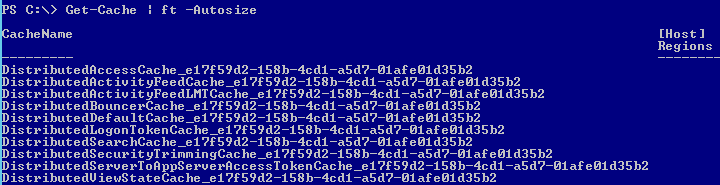
Get-Cache Command will give list of Cache Names in the Cache-Host.
PS C:\> Get-Cache | ft -Autosize
Following command gives Cache Accounts
PS C:\> Get-CacheAllowedClientAccounts
Execute following Command if you want to know the Cache Size allocation on the Cache Host. Where VM2SP is the Server Name.
Get-AFCacheHostConfiguration -ComputerName VM2SP -CachePort "22233"

You can increase size of the Cache with the following PowerShell Command.
Update-SPDistributedCacheSize -CacheSizeInMB CacheSize 
Update-SPDistributedCacheSize -CacheSizeInMB 300 

  • Please make sure you set the same CacheSize for all the Cache-Hosts in the Cache-Cluster, If you have set more than one Cache-host in the Farm Configuration.
  • Here Cache Size is the cache size of the memory allocation in MB. Default value is 5% of the total memory of the server. We cannot mention this value more than 40% of the system RAM and maximum value is 16 GB. 

To add a server (CacheHost)
  • Start the service in PowerShell: Add-SPDistributedCacheServiceInstance
To remove a server (CacheHost)
  • Stop the service in PowerShell: Remove-SPDistributedCacheServiceInstance
To stop (but not remove) the Distributed Cache service from Central Administration:
  • From Services on Server – Stop Distributed Cache Service
To stop (but not remove) the Distributed Cache service using PowerShell
Stop-SPDistributedCacheServiceInstance –Graceful 
To stop (but not remove) the Distributed Cache service using PowerShell
Stop-SPDistributedCacheServiceInstance -Graceful
Remove-SPDistributedCacheServiceInstance

To Un-Provision the Distributed Cache service by using Windows PowerShell:
$instanceName =”SPDistributedCacheService Name=AppFabricCachingService”
$serviceInstance = Get-SPServiceInstance | ? {($.service.tostring()) -eq $instanceName -and ($.server.name) -eq $env:computername}
$serviceInstance.Unprovision()


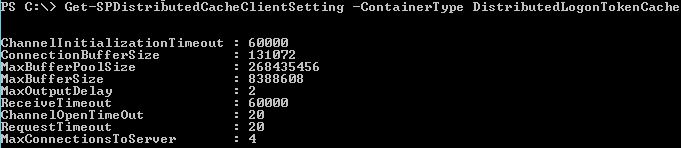
Get-SPDistributedCacheClientSetting -ContainerType DistributedLogonTokenCache 

To Change-the-Service Account use the following Script.
$farm = Get-SPFarm
$cacheService = $farm.Services | where {$_.Name -eq “AppFabricCachingService"}
$accnt = Get-SPManagedAccount -Identity domain_name\user_name
$cacheService.ProcessIdentity.CurrentIdentityType = "SpecificUser"
$cacheService.ProcessIdentity.ManagedAccount = $accnt
$cacheService.ProcessIdentity.Update()
$cacheService.ProcessIdentity.Deploy()


To Repair a cache host
During installation, configuration, or maintenance activities, the Distributed Cache service might enter a non-functioning state. Evidence of a malfunctioning Distributed Cache service will appear in Health Rules in Central Administration, or when users use features in SharePoint Server 2013 that rely on the Distributed Cache. For example, the Newsfeed on a user's My Site will start reporting errors. Also, administrators might receive the error message "cacheHostInfo is null " when they run Windows PowerShell cmdlets to manage the Distributed Cache service.
Use the following procedure to restore a non-functioning Distributed Cache host.
  1. At the Windows PowerShell command prompt, run the Get-SPServiceInstance cmdlet to list all services on all servers in the server farm. Make note of the GUID in the ID property of the Distributed Cache service on the server that you are repairing. The Get-SPServiceInstance cmdlet lists all services on all servers in the server farm. Ensure that you note the correct GUID from the server that you are repairing.
  2. At the Windows PowerShell command prompt, run the following command:
$s = Get-SPServiceInstance GUID
$s.delete()
Where GUID is the GUID of the Distributed Cache service noted in step 1.
  1. At the Windows PowerShell command prompt, run Add-SPDistributedCacheServiceInstance to reinstall and start the Distributed Cache service on the cache host that you are repairing.
Other Important things you should know about Distributed Cache are
In a stand-alone server deactivate AppFabric. Distributed cache in a single environment is not really that useful.
Please note that, Microsoft do not recommend following services and application be running on the same server running Distributed Cache service.
  • SQL Server 2008 or SQL Server 2012
  • Search service
  • Excel Services in SharePoint
  • Project Server services


If you have a small farm with Front End Server and an App Server, enable Distributed Cache Service on Web Front End Server and Stop/unprovision Distributed Cache Service on Application Server.


Minimum number of CachHosts per form are at least one.
When adding a New Server to the farm, and you can do same if you don’t want that server as Distributed Cache host to be part of the cache cluster.
Run Config Wizard with SkipRegisterAsDistributedCacheHost
PS C:\Program Files\Common Files\microsoft shared\Web Server Extensions\15\BIN>
.\PSCONFIG.EXE -cmd Configdb create SkipRegisterAsDistributedCacheHost
Connect-SPConfigurationDatabase -DatabaseServer "ServerName\InstanceName" -DatabaseName "SharePointConfigurationDatabaseName" -Passphrase (ConvertTo-SecureString "MyP@ssw0rd") -AsPlainText -SkipRegisterAsDistributedCacheHost –Force
SkipRegisterAsDistributedCacheHost: By default all the servers in the farm are registered as a cache host (that is, DistributedCacheService is running by default). Use this parameter to not register the server computer as a distributed cache host. If you want to have a dedicated cache host, then use this parameter to make sure that caching service is not installed on the computer.              

SharePoint 2010/2013 sitemap provider limitation for editing items in Global Navigation and Current Navigation.

In a recent migration and upgrade project from SharePoint 2007 to SharePoint 2013 (with intermediary SharePoint 2010 upgrade) there was an issue in the upgraded content in SharePoint 2010 and SharePoint 2013 that in Navigation settings, the “Editing and sorting control” did not show all SubSite links to edit. The site in SharePoint 2007 was having about 258 Sub Sites and all Subsets are configured to be added to the parent site’s Top Navigation (Global navigation) and quick launch navigation. Client has customized the order for all SubSite links in both Global/Current.
image
Global and Current Navigations.
clip_image004Sorting and Editing Global Navigation Links

imageSorting and Editing Current Navigation Links

After upgrade to SharePoint 2010/2013, the issue was (in Site Action->Navigation) in the navigation settings page, the “Structural Navigation: Editing and Sorting” control displayed only 50 Subsets/Page links in Global/Current navigation. The reason being, by design, as per the default settings for NavSiteMapProvider in Web.Config, the SharePoint only showed the first 50 items (pages) in the Navigation Editing and Sorting control.  All other Sub Sites did not show-up under the Navigation Editing and Sorting section.
In order to show all items in the "Navigation Editing and Sorting" navigation pane, web.config file on each Web Front-End server in the farm has been modified for following providers with DynamicChildLimit="0".
<add name="GlobalNavSiteMapProvider" description="CMS provider for Global navigation" type="Microsoft.SharePoint.Publishing.Navigation.PortalSiteMapProvider, Microsoft.SharePoint.Publishing, Version=15.0.0.0, Culture=neutral, PublicKeyToken=71e9bce111e9429c" NavigationType="Global" EncodeOutput="true" DynamicChildLimit="0"/>
<add name="CurrentNavSiteMapProvider" description="CMS provider for Current navigation" type="Microsoft.SharePoint.Publishing.Navigation.PortalSiteMapProvider, Microsoft.SharePoint.Publishing, Version=15.0.0.0, Culture=neutral, PublicKeyToken=71e9bce111e9429c" NavigationType="Current" EncodeOutput="true" DynamicChildLimit="0"/>
Also the default value for maximum number of dynamic items to show with in this level of navigation is 20 for Global and Current navigation. This value can be increased depending on requirement to show the number of “Top Navigation (Global Navigation)” items.
image

SharePoint 2013 Apps: Free-to-use-1


My Breadcrumb:

The Breadcrumb app provides an efficient way to quickly navigate through SharePoint Sites.

image


Help Desk

The Help Desk App will help to improve service request process in your organization.
image
The App allows only actions available to a user depending on the user’s role and the current status of the request. The Admin user can specify the Manager and Performers group and modify email notification templates.